Lightroom presets are pre-made settings that photographers use to quickly edit photos in lightroom with just one click. These presets help save time by instantly applying changes like lighting, colors, and effects. But sometimes, users face an issue where their Lightroom presets not showing up in the panel, making it frustrating to use the tool effectively.
In this article, we will explore why presets may disappear and how to fix this issue. Whether you’re using Lightroom Classic or Lightroom CC, this guide will help you get your presets back and working smoothly.
Table of Contents
Common Reasons Lightroom Presets Are Not Showing Up
There are several reasons why your Lightroom presets might not show up. These problems can occur due to compatibility issues, incorrect file formats, or improper installation. Let’s break down the most common causes and how to handle each one.
1. Incompatible File Types
Presets behave differently based on the type of file you edit. When you work on a JPEG, you might find that some presets are unavailable because they target RAW images. Adobe Lightroom automatically hides these partially compatible presets to prevent issues with applying the wrong settings.
Solution:
- Double-check the file type you're working with (JPEG or RAW). If you edit JPEGs, some presets might appear in italics or appear greyed out in the presets panel.
- Switch to RAW files for full compatibility with all presets.
2. Presets Are Hidden : Lightroom Presets Not Showing Up
Lightroom sometimes hides presets that are not fully compatible with your selected image. For example, if a preset includes a RAW-specific profile, it won’t appear if you’re editing a JPEG file.
Step-by-Step:
- Open Lightroom and navigate to the Develop mode.
- Go to Preferences by clicking the Lightroom tab (upper left corner).
- In the Presets tab, make sure to check "Show Partially Compatible Develop Presets" to display any hidden presets.
- Go back to the Develop Preset Folder and check for greyed-out options.
3. Presets Not Properly Installed
Solution:
- First, locate your downloaded presets, usually in a zip file.
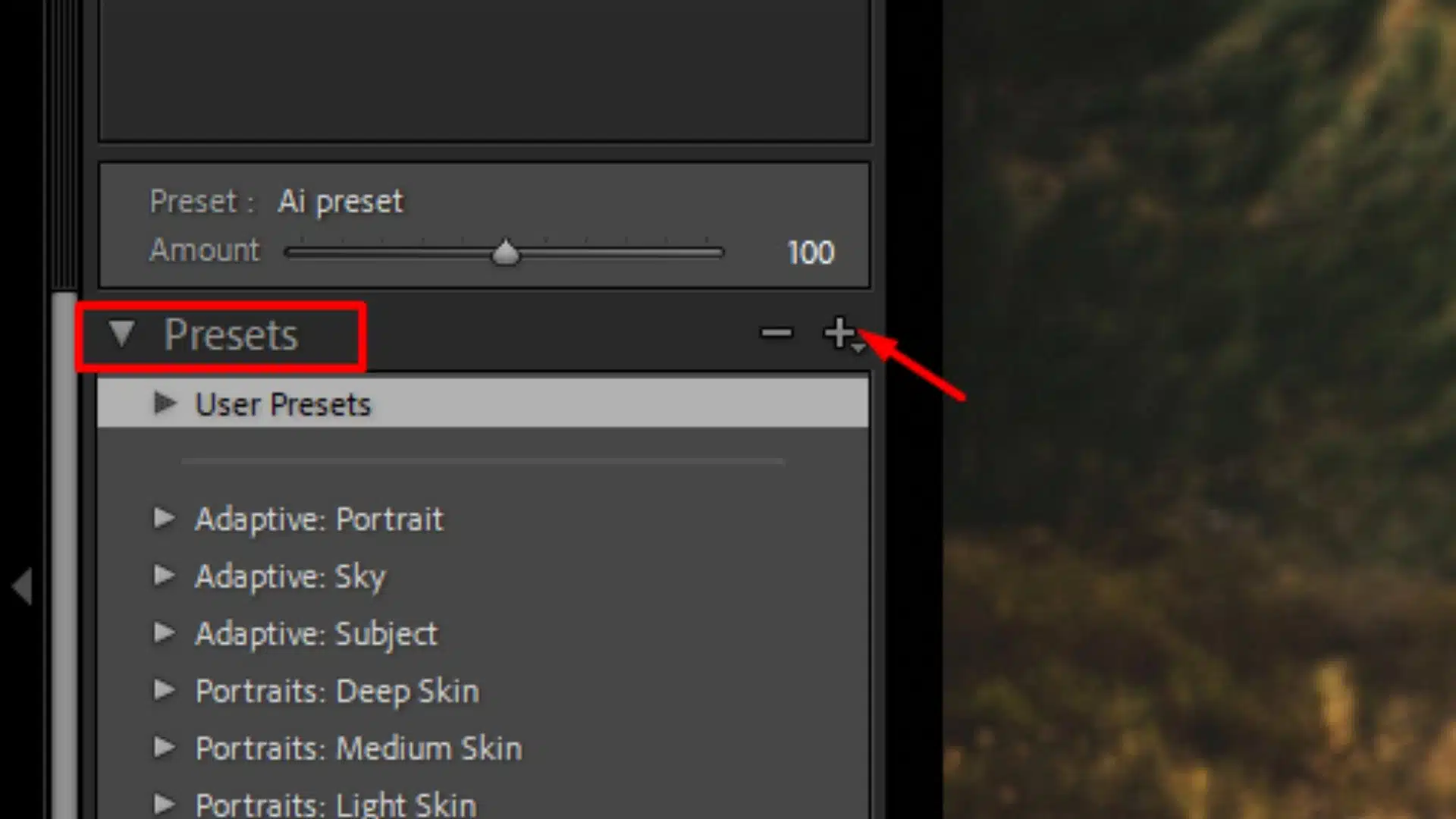
- In Lightroom, go to the Develop Preset Panel.
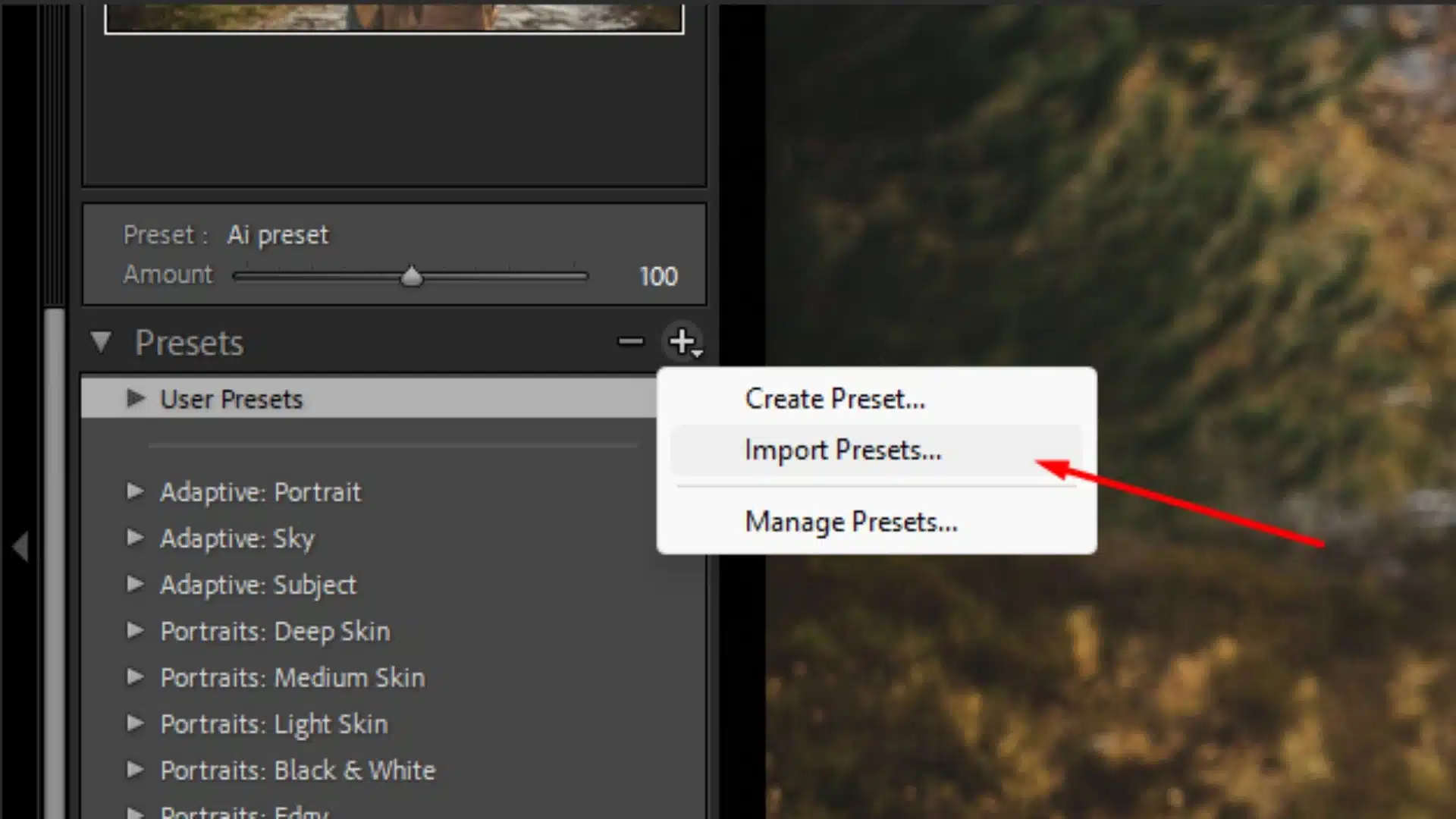
- Click on the + symbol and choose Import Preset.
- Navigate to your lightroom folder and select the presets.
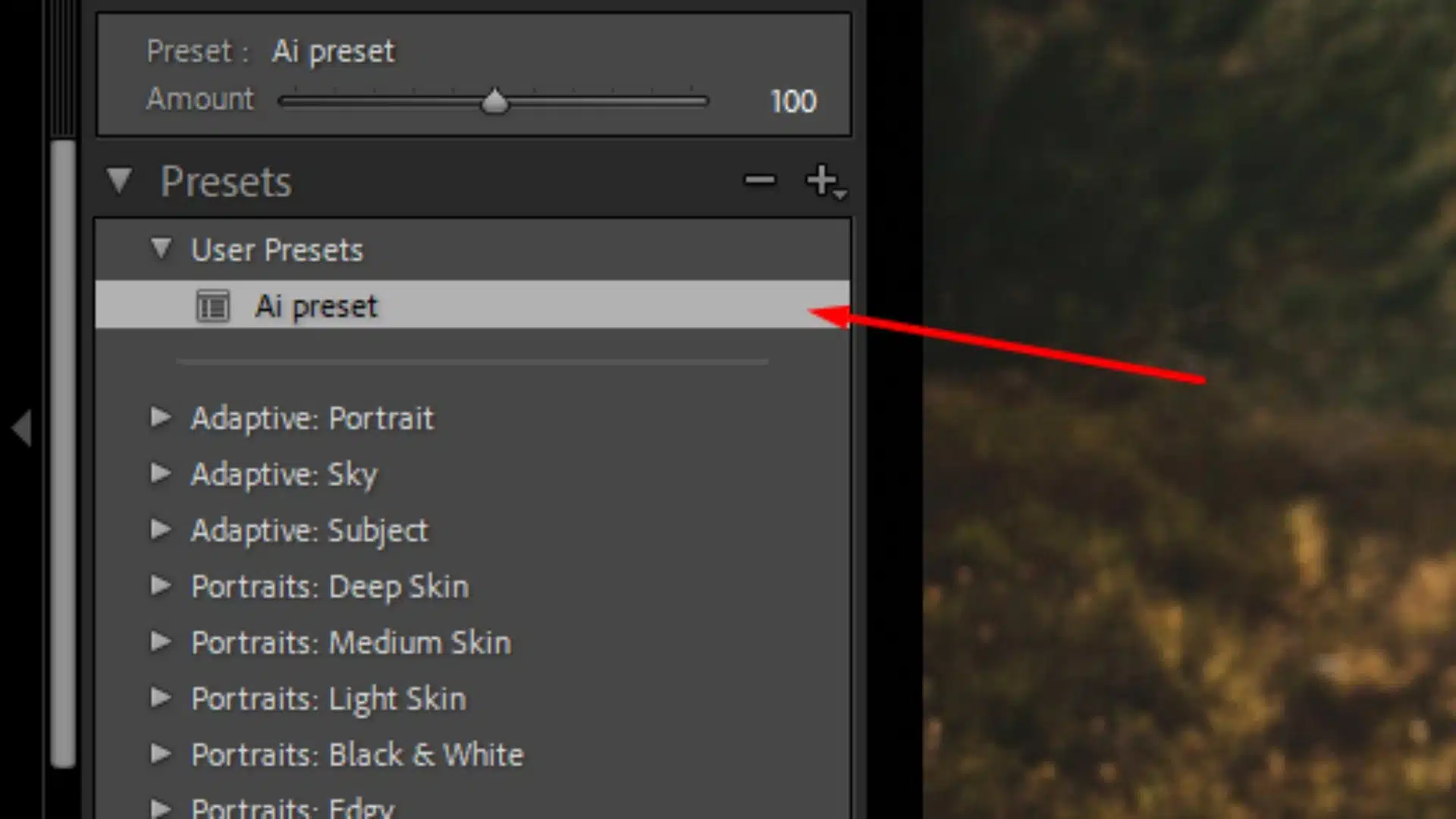
- If they still don’t appear, restart Lightroom and check the Presets Panel again.
4. Presets Panel Visibility Settings
Sometimes the problem lies with the visibility settings of the Preset Panel. If you can’t see your presets after importing them, check your display settings in Lightroom to ensure they show up correctly.
Step-by-Step:
- Click on the Preset Panel in the Develop Module.
- Select Manage Presets by clicking the three dots in the upper right corner.
- Make sure your installed presets are checked.
- Once checked, the presets should appear in the list.
5. Sync Issues on Mobile or Other Devices
If you’re using Lightroom on a mobile device, your presets might not sync correctly from your desktop version. This issue can occur if you don’t store presets in the correct catalog or if they are missing from your cloud backup.
Solution:
- Double-check your user presets folder on the desktop.
- Ensure that you have chosen to store presets with this catalog so they sync across devices.
- If needed, import the presets manually on your mobile app.
These are the most common reasons why Lightroom presets not showing up. By following the steps and solutions provided, you can easily resolve the issue and get back to your photo editing without frustration.
Steps to Fix Missing Lightroom Presets After Import
When Lightroom presets don’t appear after import, it can be frustrating, but there are several solutions to resolve this issue. Let’s walk through some simple steps that can help make sure your presets are properly visible and usable.
1. Double Check the Import Process
One common problem is that presets weren’t imported correctly. Make sure you followed the right steps to import presets into Lightroom Classic.
Step-by-Step:
- Open Lightroom and switch to the Develop Mode.
- Click the + sign in the Presets Panel and select Import Presets.
- Navigate to the folder where your presets are saved. This could be a zip file or an extracted folder.
- Select the presets, then click Import.
- Your presets should now appear in the Preset Panel.
A user recently imported a new preset pack but didn’t unzip the files. After extracting the zip file and following the steps, the presets appeared in Lightroom.
2. Check for Hidden Presets : Lightroom Presets Not Showing Up
Sometimes, Lightroom hides presets that are partially compatible with the file type you’re working on. This happens when certain settings in a preset are not compatible with a JPEG or other image formats.
Step-by-Step:
- Go to the Preferences menu (under Lightroom in the top-left corner on Mac, or Edit on Windows).
- Navigate to the Preset Tab.
- Make sure the box for Show Partially Compatible Develop Presets is checked.
- Return to the Develop Presets Folder and check if your presets are now visible.
A photographer working with JPEG files noticed hidden RAW-specific presets. After they checked the box to show partially compatible presets, the missing presets appeared in grey in the panel. Learning lightroom shortcuts made managing presets much easier.
3. Manage and Enable Presets
Step-by-Step:
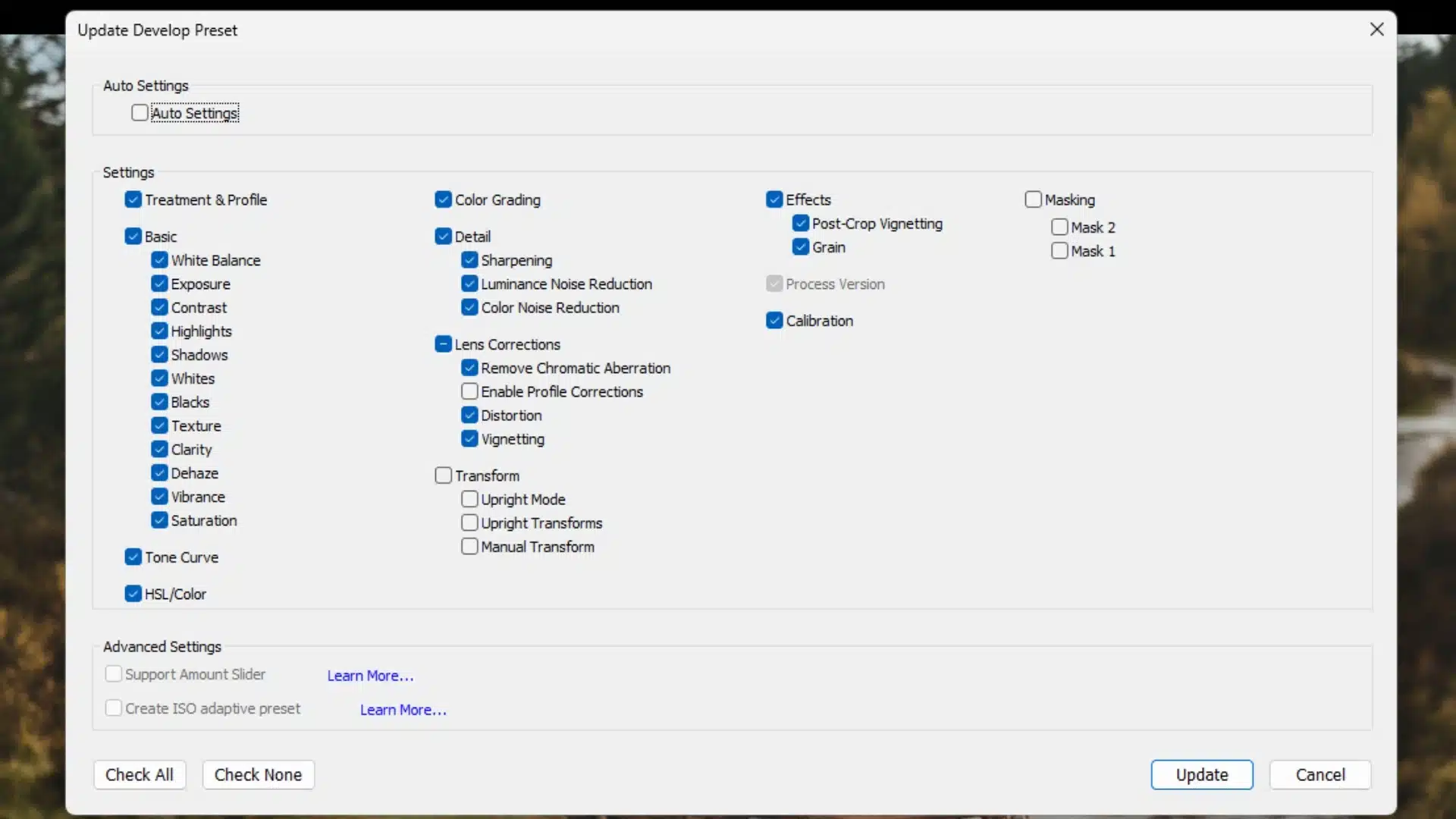
- In the Develop Module, click the three dots in the upper right corner of the Preset Panel.
- Select Manage Presets from the dropdown menu.
- In the window that pops up, check the boxes next to the installed presets you want to see in the panel.
- Click Save, and the presets should now be visible.
4. Store Presets with the Catalog
Step-by-Step:
- Go to Preferences by clicking on the Lightroom tab at the top of your screen.
- Navigate to the Presets Tab.
- Check the box labeled Store Presets with This Catalog.
- Restart Lightroom to ensure the changes take effect.
Example: A user working with multiple catalogs noticed their presets disappeared when switching between them. By storing presets with each catalog, the user solved the problem.
5. Re-import Presets if Still Missing
If your presets still aren’t showing, try re-importing them to ensure they install correctly. This step is especially useful if you imported the presets into the wrong folder.
Step-by-Step:
- Delete the current presets that aren't showing.
- Open Lightroom and go to the Develop Mode.
- Click on the + symbol in the Preset Panel and choose Import Presets.
- Navigate to the folder where the presets are located and select the presets to re-import them.
A photographer faced issues with missing profiles after importing a new preset. By re-importing the presets and restarting Lightroom, they were able to restore everything.
These steps provide clear and easy solutions to missing Lightroom preset after importing. By following them, you should be able to resolve any issues and have your presets appear in the Preset Panel for quick use. Also, familiarity with the tools in lightroom enhances creativity and efficiency.
How File Formats (JPEG vs. RAW) Affect Preset Visibility
| Aspect | JPEG | RAW |
|---|---|---|
| Data | Compressed, less image data. | Uncompressed, full image data retained. |
| Preset Compatibility | Limited compatibility with some presets. | Full compatibility with most presets. |
| Editing Flexibility | Less room for detailed edits due to data loss. | Maximum flexibility for detailed edits. |
| Preset Visibility | Some presets may not show or work fully. | All presets will typically show up and work. |
| Best Use | Quick edits for ready-to-share images. | Detailed editing for professional results. |
1. RAW Files and Preset Compatibility
Why RAW Works Best:
- RAW files hold all of the original image data, meaning xmp presets and other complex develop settings can be fully applied.
- Many develop presets include camera profiles that are only compatible with RAW files. When using RAW images, you’re less likely to encounter issues with missing profiles or preset visibility. Utilizing Camera RAW helps unlock the full potential of these presets.
- Lightroom Classic is built to handle RAW images with better flexibility, allowing all the settings in the preset to be used.
- When you work on a RAW image, Lightroom applies the preset more accurately since the file retains all the necessary information to adjust exposure, color balance, and more.
2. JPEG Files and Partially Compatible Presets : Lightroom Presets Not Showing Up
Why JPEG Has Limitations:
- JPEGs are smaller in size and lose much of the detail needed for advanced adjustments.
- Some presets won’t appear in the presets panel when working with JPEGs because they are designed for RAW files and need the extra data that JPEGs lack.
- Presets with camera profiles built in will often not show up for JPEG images, as these profiles are exclusive to RAW formats. To utilize these profiles, you'll need to open camera raw with your RAW files.
- A photographer working with JPEG images may notice that some of their favorite presets don’t show up in the develop mode. This happens because Lightroom only shows presets that can apply fully to the JPEG format.
3. How to Show Hidden Presets for JPEG Files
If you’re working with JPEGs but still want to use some presets, you can adjust your settings in Lightroom Classic to reveal those hidden partially compatible develop presets.
Step-by-Step:
- Go to Preferences in the top-left corner (on Mac or Windows).
- In the Presets Tab, check the box labeled Show Partially Compatible Develop Presets.
- Navigate back to the Develop Preset Panel to see if more presets appear, even if they are greyed out.
- By checking the Show Partially Compatible Develop Presets option, a user can now see presets for RAW images, even if they are editing a JPEG. This provides a visual reminder that the preset won’t fully apply, but parts of it can still be used.
4. Preset Compatibility Across Different Devices
When switching between a computer and mobile device, preset visibility can change depending on the file format used. Presets stored with a catalog on one device may not sync properly with other devices if there is a mismatch between RAW and JPEG file handling.
Tips:
- Make sure the preset is compatible with both formats if you plan on using it across multiple devices.
- If syncing issues occur, check that the preset has been fully installed on both your desktop and mobile versions of Lightroom.
- A user may encounter presets missing from their preset list on mobile, especially when working with JPEGs. Ensuring the preset is stored and synced properly across devices helps avoid this issue.
5. Avoiding Common File-Related Preset Issues
To prevent presets from going missing when using JPEG or RAW files, it’s important to follow community guidelines for preset installation and usage.
Best Practices:
- Always double check the file format you're working with before applying a preset.
- Make sure presets are installed correctly and synced across devices, particularly for RAW files.
- For JPEGs, adjust the settings to display partially compatible preset if necessary.
By understanding how different image file types affect preset visibility in Lightroom, you can ensure that your presets work as intended and avoid confusion when they don’t appear in the presets panel.
Frequently Asked Questions : Lightroom Presets Not Showing Up
Why won't my presets show up on Lightroom?
Your presets might not be visible because they are not compatible with the file you are editing. For example, RAW-only presets may not appear when you’re working with JPEG files. Another reason could be that the presets were not correctly imported or installed. Make sure to check the presets panel in the Develop Mode and ensure they were installed correctly by following community guidelines. Lastly, ensure you are using the correct Lightroom Classic version that supports the presets you are trying to use.
Where have my Lightroom presets gone?
Why are my Lightroom presets not syncing?
How do I enable presets in Lightroom?
Conclusion : Lightroom Presets Not Showing Up
I remember when my Lightroom presets didn’t show up, and I couldn’t figure out why. After some trial and error, I realized the issue was simply a mismatch between the file type I was editing and the preset settings. A quick adjustment in the preferences solved everything. It was a great reminder that understanding how Lightroom works can save you time and frustration.
If you’re facing similar challenges or want to improve your skills, our photo editing courses are here to help! Check out our Photoshop course and Lightroom course to start mastering your editing tools today!
If “Lightroom Presets Not Showing Up” article has helped you, then Like and Share it with your friends
Have a nice photoshoot!
Read more about: Photo Editing with Lightroom and Photoshop