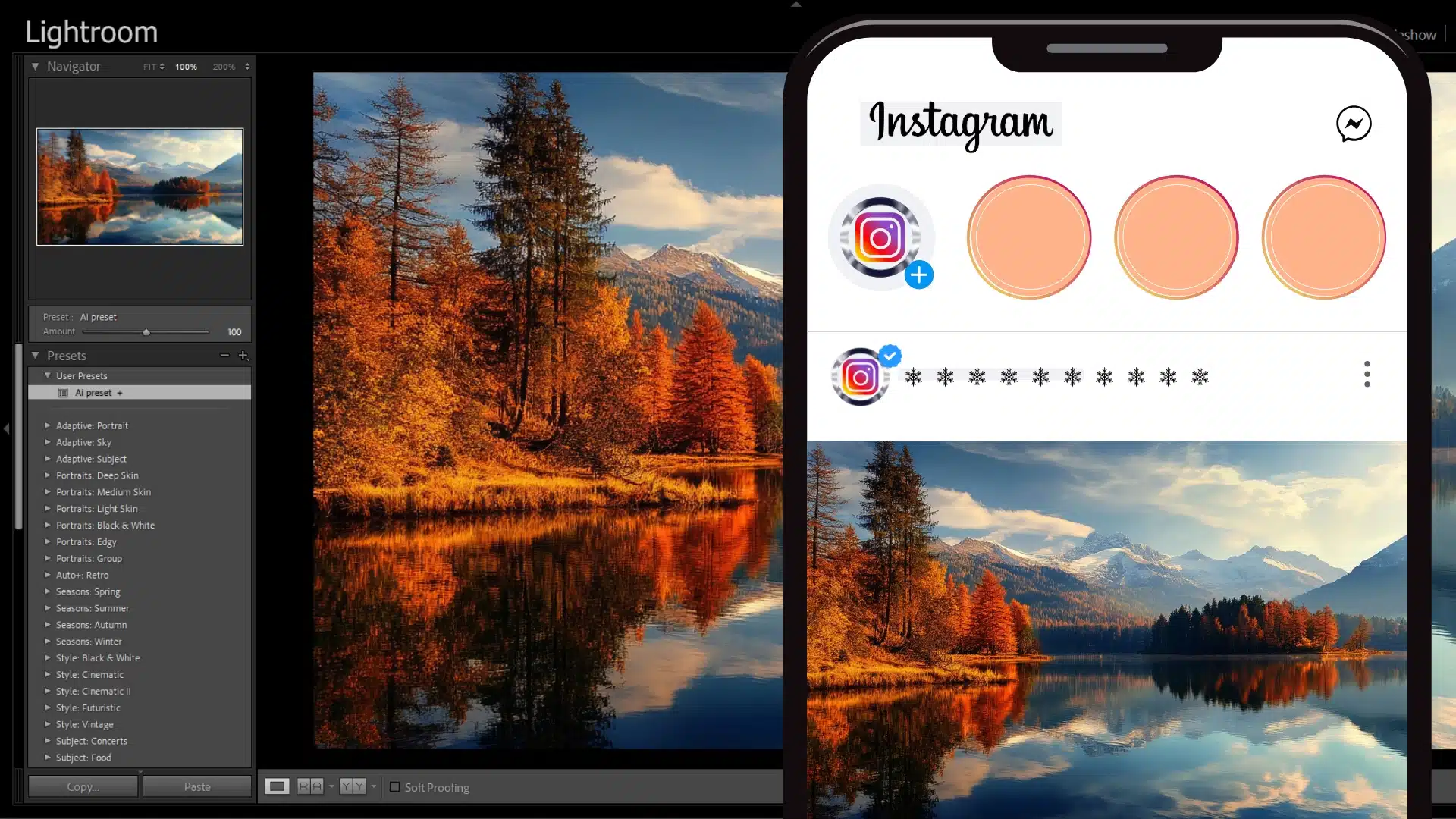
The Lightroom to Instagram Workflow helps you turn raw photos into stunning social media posts. It’s a quick process that makes your images look professional. Many photographers and social media users rely on it to improve their Instagram feeds.
In this article, you’ll learn how to prepare, edit, and post photos from Lightroom to Instagram. We’ll cover tips for better quality, and ways to save time. Whether you’re new to Lightroom or looking to enhance your workflow, this guide has everything you need.
Table of Contents
Understanding the Lightroom to Instagram Workflow
The Lightroom to Instagram workflow is all about making sure your photos look amazing on Instagram. By following a clear process, you can enhance image quality, apply consistent edits, and export files correctly to match Instagram’s requirements. This workflow saves time, keeps your style consistent, and improves your social media presence.
Why Use Lightroom for Instagram?
- Powerful Editing Tools: Lightroom has advanced features to enhance colors, adjust brightness, and sharpen photos.
- Consistency: Using Lightroom presets helps create a uniform look for all your Instagram posts.
- Easy Exporting: Lightroom Export Settings ensure your photos have the right file size and resolution for Instagram.
Using Lightroom means you can create professional-quality images that stand out in the Instagram app.
Choosing Between Lightroom Classic and Lightroom Mobile
Depending on your setup, you can use either Lightroom Classic on your computer or Lightroom Mobile on a mobile device. Here’s a quick comparison:
- Lightroom Classic: Great for heavy editing on a computer with more storage and options for export presets and metadata control.
- Lightroom Mobile: Perfect for quick edits on the go and directly uploading to your Instagram account. Ideal for travelers or those who post often.
Example: A photographer may use Lightroom Classic at home for high-quality edits, then use Lightroom Mobile to make quick adjustments and post straight from their phone.
Organizing Your Lightroom Catalog for Instagram
Efficient organization is essential for a smooth workflow. Here’s how to keep your Lightroom Classic catalog tidy:
- Create folders for specific projects, like “Instagram Posts” or “Holiday Photos.”
- Make collections for different themes, like “Landscapes” or “Portraits,” to make finding images easy.
- Use tags or keywords for quick searches.
A well-organized catalog helps you find photos quickly, making the editing and uploading process much faster.
Editing Basics for Instagram Aesthetics
Lightroom Editing allows you to bring out the best in each photo. Follow these steps for basic adjustments:
- Adjust exposure to ensure your photo isn’t too dark or too bright.
- Tweak colors with the color sliders for a vibrant look.
- Use the quality slider in export settings to control image quality without increasing file size.
- Set the aspect ratio to 1:1 or 4:5 to match Instagram’s format.
These simple edits create visually appealing photos that look great in your Instagram grid.
Exporting for Instagram Posting
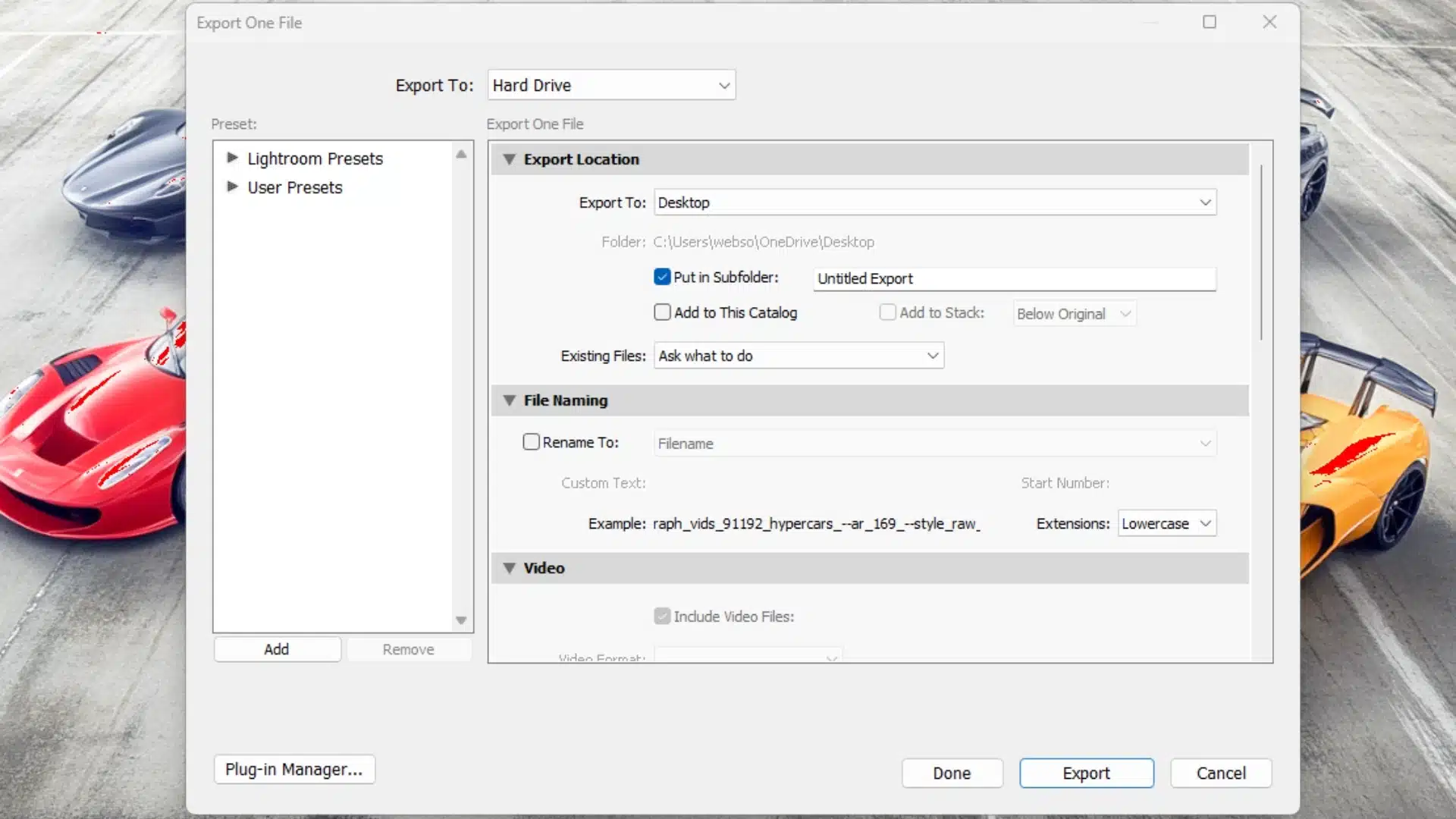
Getting the export settings right is crucial for high-quality posts. Here’s a step-by-step guide:
- Select your photo in Lightroom and click Export.
- Choose JPEG as the image format and adjust the resolution to 1080px width (ideal for Instagram).
- Use a file size of around 1MB or less for faster uploading.
- Save your export settings to keep them handy for future exports.
This export process ensures that your photos are ready for Instagram with minimal loss of image quality. By optimizing lightroom export quality, you can achieve the best results for your images.
By following these steps, you can build an efficient Lightroom to Instagram workflow that produces stunning photos every time.
Preparing Your Photos in Lightroom for Instagram
Preparing your photos in Lightroom for Instagram involves a few steps that make your images look polished and professional. Whether you’re sharing nature shots, portraits, or event photos, these steps help you get the best results. This section covers essential adjustments, from image sizing to final touches, so your photos shine on Instagram.
Adjusting Image Size and Aspect Ratio
When preparing your photos, image sizing is important for clear, high-quality uploads. Instagram favors specific dimensions, so resizing is key.
- Open Lightroom and select the photo you want to adjust.
- Choose the aspect ratio that best suits Instagram. 1:1 (Square) - Ideal for a neat look on the feed, 4:5 (Portrait) - Maximizes space on Instagram and stands out more.
- Resize the image to 1080 pixels wide. This size keeps quality high without overloading your feed.
For instance, travel photographers often use the 4:5 ratio to capture vertical landscapes that look stunning in an Instagram account feed.
Final Touches with Lightroom’s Editing Tools
Once the basics are in place, you can fine-tune with additional tools:
- Adjust Metadata: Add basic metadata if you want to record details, like location or camera type, for easy tracking.
- Use Presets (Optional): If you want a consistent look, using a lightroom preset can simplify edits. This is especially helpful if you post regularly to Instagram and want a uniform aesthetic.
- Save to Camera Roll: When ready, save the photo to your camera roll so it’s easy to find for uploading.
These steps let you achieve professional edits with minimal effort, helping you develop a strong and recognizable style.
Preparing for Posting with Captions and Hashtags
A good Instagram caption enhances your post and encourages engagement. Prepare your caption in advance to ensure it matches your photo’s vibe:
- Short and Engaging: Write a catchy phrase or question related to the photo.
- Hashtags: Use relevant hashtags to help people find your posts.
- Tag Locations: If your photo has a specific place, tag it in the caption to add context.
By planning your posting details, like captions and hashtags, you’re all set to share your best work with ease.
Following these steps ensures that your photos are high-quality, vibrant, and ready for Instagram. This approach gives you a smooth current workflow, making the Lightroom to Instagram process a true game changer for your social media presence.
How to Export Photos from Lightroom for Instagram
Exporting photos from Lightroom for Instagram requires a few important steps to ensure that your images look crisp and vibrant on Instagram. This section will guide you through optimizing your photo output, from setting pixel dimensions to managing details like layout and captions, so you can seamlessly share high-quality images on your Instagram account.
Setting the Right Dimensions and Output Quality
For Instagram, photos need to be properly sized for clarity and visual impact. Choosing the right dimensions is critical.
- Select Your Photo in Lightroom: Start by opening the Lightroom app and choosing the photo or collection you want to share.
- Set Pixel Dimensions: Instagram works well with images that are 1080 pixels wide. For vertical photos, aim for 1350 pixels tall. This keeps your photos sharp.
- Choose Output Quality: Adjust the quality so the photo looks clear but isn’t too large. This helps it load quickly on the platform without losing detail.
A landscape photographer, for instance, may use these settings to ensure wide shots look detailed on smaller screens.
Preparing the Photo for Upload with Final Edits
Before sending your photo to Instagram, make final tweaks to maximize impact.
- Double-Check Brightness and Contrast: Ensure the image isn’t too dark or overly bright.
- Sharpen if Necessary: A small sharpening adjustment can make the details stand out on Instagram, especially if your photo has fine elements.
- Preset Option (Optional): Use a preset if you want to keep your posts looking consistent across your Instagram account.
These last-minute edits ensure your photo has a professional finish that stands out.
Saving the Photo for Easy Access on Your Device
Once the photo is ready, save it in a location that’s easy to access on your phone.
- Export the Photo to Your Device: Save the photo directly to your phone or iPad for easy access.
- Check Layout: Confirm that the layout of the image works well for Instagram.
- Save as a Standard Format: Most apps support standard formats, so keep the photo saved as is without making changes that could affect compatibility.
Saving to your device means you’re just a few steps away from sharing your photo.
Uploading to Instagram with Captions and Hashtags
When your photo is ready, follow these steps to complete the process:
- Open Instagram and start a new post.
- Select Your Photo from your saved images on your phone.
- Think of a creative Instagram caption that matches the mood or theme of your photo.
- Add hashtags to increase visibility and reach more viewers.
Including an engaging caption and appropriate hashtags can help your photo get more likes, comments, and shares.
Following these steps ensures that your photos are optimized for Instagram, from initial output to final post. This attention to detail makes your Lightroom to Instagram process efficient, helping you build a stunning Instagram feed that reflects your style and vision. Explore how to export from photoshop to lightroom for a seamless editing experience.
Lightroom Mobile vs. Desktop for Instagram: A Feature Comparison
When deciding between Lightroom Mobile and Desktop for Instagram, it’s helpful to understand how each version supports different needs. Here’s a quick comparison of key features to help you choose the best option.
| Feature | Lightroom Mobile | Lightroom Desktop |
|---|---|---|
| Ease of Use | Simple for quick edits on-the-go | Advanced tools for detailed adjustments |
| Device Compatibility | Works on phone and tablet | Works on computer |
| Preset Application | Easy to apply presets; great for a consistent style | More control over preset customization |
| Image Export | Directly share to Instagram | High-quality output with more file options |
| Storage | Cloud-based, saving space on device | Uses computer storage; ideal for larger projects |
| Editing Options | Basic adjustments like color and brightness | Advanced features like selective edits and plugins |
Both versions of Lightroom have unique strengths, so choose the one that best fits your editing style and Instagram posting needs.
Frequently Asked Questions : Lightroom to Instagram Workflow
How do I post from Lightroom to Instagram?
To post from Lightroom to Instagram, first export your photo to your phone or camera roll. Then, open Instagram, start a new post, and select your saved photo. Add your caption and any hashtags, then share it with your followers.
What is the best format to export from Lightroom for Instagram?
The best format is JPEG, as it keeps image quality high without making the file too large. Set the width to 1080 pixels to fit Instagram’s standards and use sRGB as the color setting. This ensures colors look accurate on mobile screens.
How do you split photos in Lightroom for Instagram?
To split photos, use the print module in Lightroom. Arrange your image to create even sections, then save each section as a separate photo. You can also use third-party apps if you want an easier method. After splitting, upload each piece in order for a seamless look on your feed.
What is your Lightroom workflow?
A basic Lightroom workflow involves these steps:
- Import photos and organize them in collections.
- Apply any presets or make basic adjustments.
- Edit details like brightness, contrast, and colors.
- Resize and export the photo at 1080 pixels wide.
- Save to your device and upload to Instagram.
This workflow keeps your photos organized and ready for quick posting on Instagram.
Conclusion : Lightroom to Instagram Workflow
Mastering the Lightroom to Instagram workflow has made sharing high-quality photos much easier for me. With the right settings and simple edits, I can now create posts that look professional and eye-catching.
If you want to elevate your Instagram game and learn how to make every photo shine, explore our Photoshop Course and Lightroom Course.
If “Lightroom to Instagram Workflow” article has helped you, then Like and Share it with your friends
Have a nice photoshoot!
Read more about: Photo Editing with Lightroom and Photoshop